How to Install OpenClaw on Your PC: The Ultimate 2026 Guide
OpenClaw is an autonomous AI agent designed to run locally on your machine. Whether you want to automate your coding workflow, manage your server via WhatsApp, or build custom “skills,” OpenClaw is the engine that makes it happen.
Prerequisites
Before we dive into the installation, ensure your PC meets these requirements:
- Operating System: Windows (via WSL2 recommended), macOS, or Linux.
- Node.js: Version 22 or higher (Check with
node -v). - RAM: Minimum 1GB (4GB recommended for stable builds).
- AI API Key: An API key from Anthropic (Claude), OpenAI, or a local provider like Ollama.
Installation Steps
1. Install Node.js
OpenClaw runs on Node.js. If you haven’t updated recently, go to the official Node.js website and install the LTS version.
2. The One-Line Installer
The fastest way to install OpenClaw is using the official script. Open your terminal (or PowerShell on Windows) and run:
For Mac/Linux/WSL2:
Bash
curl -fsSL https://openclaw.ai/install.sh | bash
For Windows (PowerShell):
PowerShell
iwr -useb https://openclaw.ai/install.ps1 | iex
3. Running the Onboarding Wizard
Once installed, you need to configure your AI “brain” and messaging platforms. Run the following command to start the interactive wizard:
Bash
openclaw onboard --install-daemon
- Select Model Provider: Choose your preferred AI (e.g., Claude 3.5 Sonnet or Gemini 1.5 Pro).
- Paste API Key: Enter your secret key when prompted.
- Daemon Setup: Using the
--install-daemonflag ensures OpenClaw runs in the background even if you close the terminal.
4. Accessing the Control UI
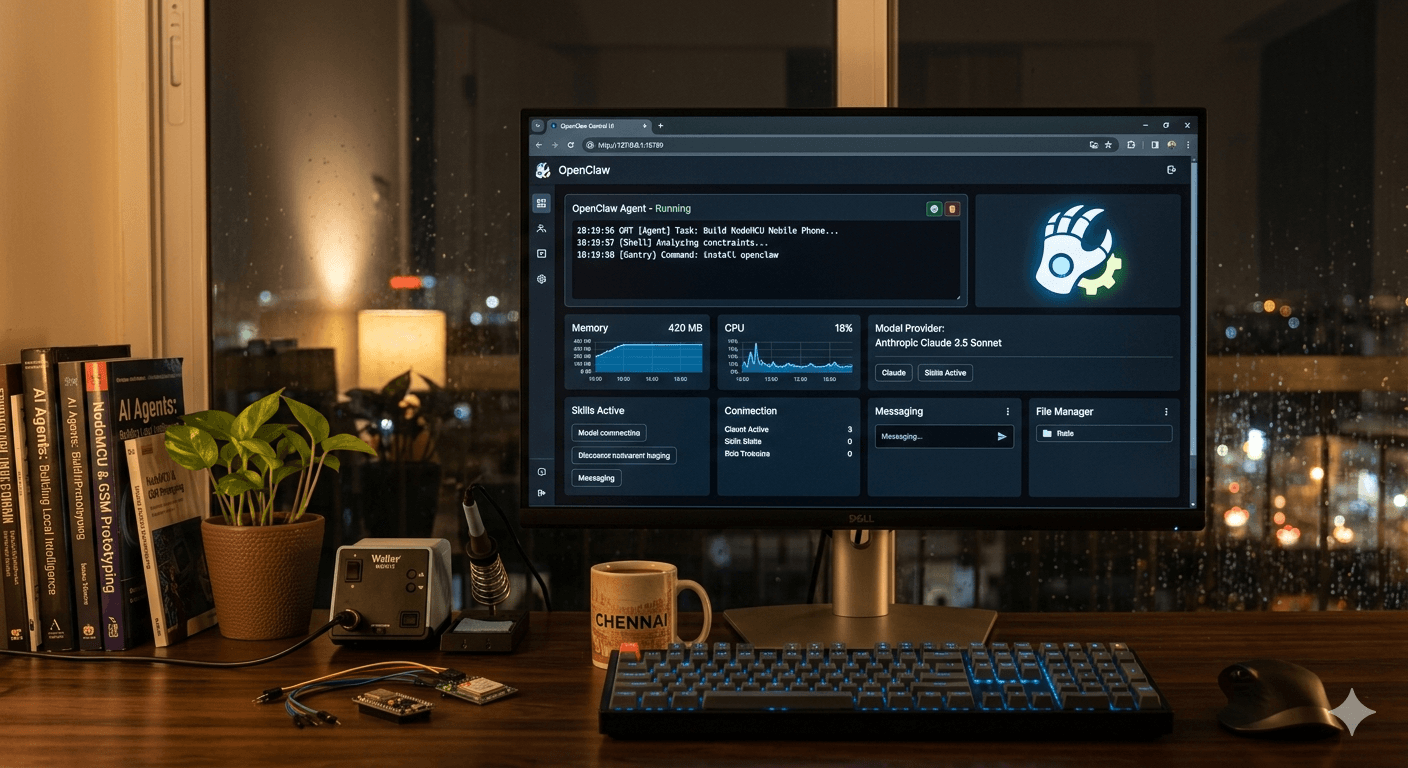
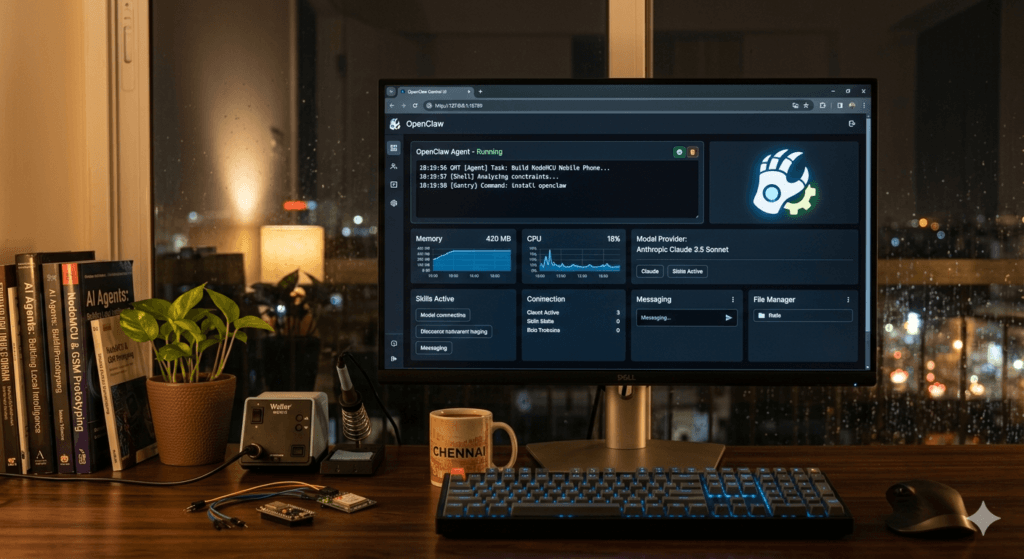
OpenClaw provides a web-based dashboard for real-time monitoring. Once the setup is complete, navigate to: http://127.0.0.1:18789
Here, you can view logs, manage “Skills,” and see exactly what your agent is doing.